Upgrade from 0.19 to 1.0
What to expect from the first launch, data backup, search rebuild, and device re-pairing.
After upgrading from 0.19 to 1.0, the first launch takes longer than usual, search is briefly unavailable, and the old paired-device list is cleared. These are expected parts of the upgrade and do not mean your local history is gone.
A 0.19 device cannot pair with a 1.0 device. Both devices must run 1.0 before you pair them again.
One-minute pre-upgrade check
- Let every 0.19 device finish one last sync.
- Confirm important text, images, and files open on at least one device. Save an extra copy of irreplaceable files.
- Note the current device names so you can identify them when pairing again.
- Fully quit UniClipboard on every device.
- Keep the 0.19 installer until every device has upgraded successfully.
For multiple devices, upgrade one at a time. Confirm that the first device's history is intact before upgrading the next one.
Recommended upgrade order
- Start with a computer that has complete data and is easy to access.
- Let it finish the backup and search rebuild, then confirm its history opens.
- Upgrade a second device.
- Once both show 1.0, pair them again and test sync in both directions.
- After that succeeds, upgrade and pair each remaining device in turn.
A device still on 0.19 keeps its local data, but it cannot pair or sync with a device already on 1.0.
Normal upgrade
- Download the 1.0 installer for your operating system and processor from the official releases page.
- Fully quit UniClipboard, including its tray or menu-bar process.
- Install over the existing app using the same installation style. For Windows portable, replace the program but preserve the existing
datafolder. - Start UniClipboard once and let the first upgrade finish.
An in-place install does not intentionally delete history. Do not uninstall the app, delete its data directory, or switch back to 0.19 during first launch.
What happens on first launch
First launch completes three stages.
1. Back up existing data
The app first copies and verifies the local 0.19 data. This makes the first launch slower than usual, and larger histories take longer. Do not force quit, shut down the computer, or open a second UniClipboard instance before it finishes.
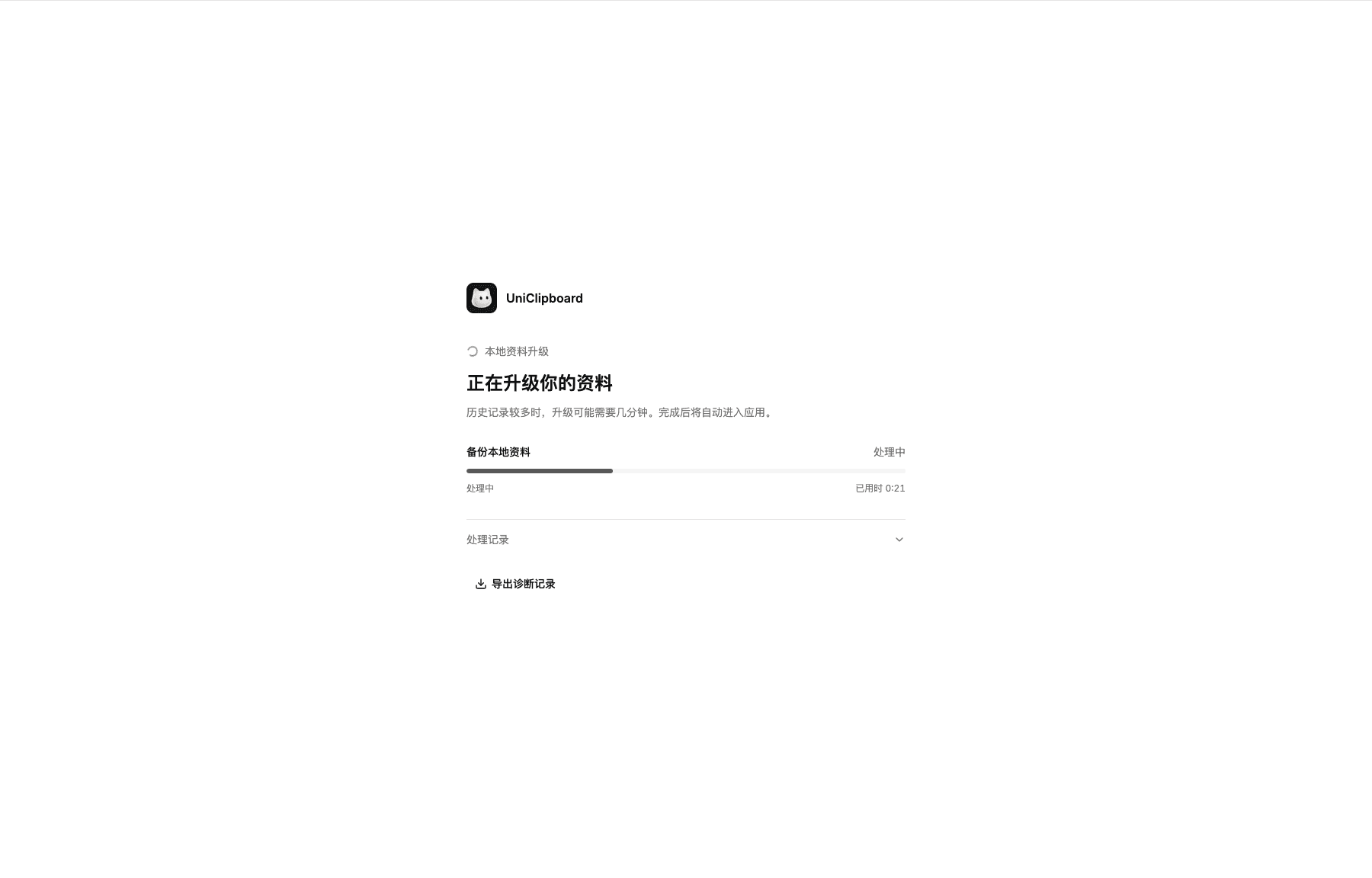
Upgrade backups are stored separately from the active data directory:
| System | Default location |
|---|---|
| macOS | ~/Library/Application Support/app.uniclipboard.desktop-upgrade-backups/ |
| Windows | %LOCALAPPDATA%\app.uniclipboard.desktop-upgrade-backups\ |
| Linux | ~/.local/share/app.uniclipboard.desktop-upgrade-backups/ |
If you use a named profile, its suffix is added after desktop. Windows portable builds still put upgrade backups in the system location above, not inside the portable data folder.
After upgrading, view the backup version, time, and size under Settings → Storage → Upgrade backups. The app keeps up to five recent backups.
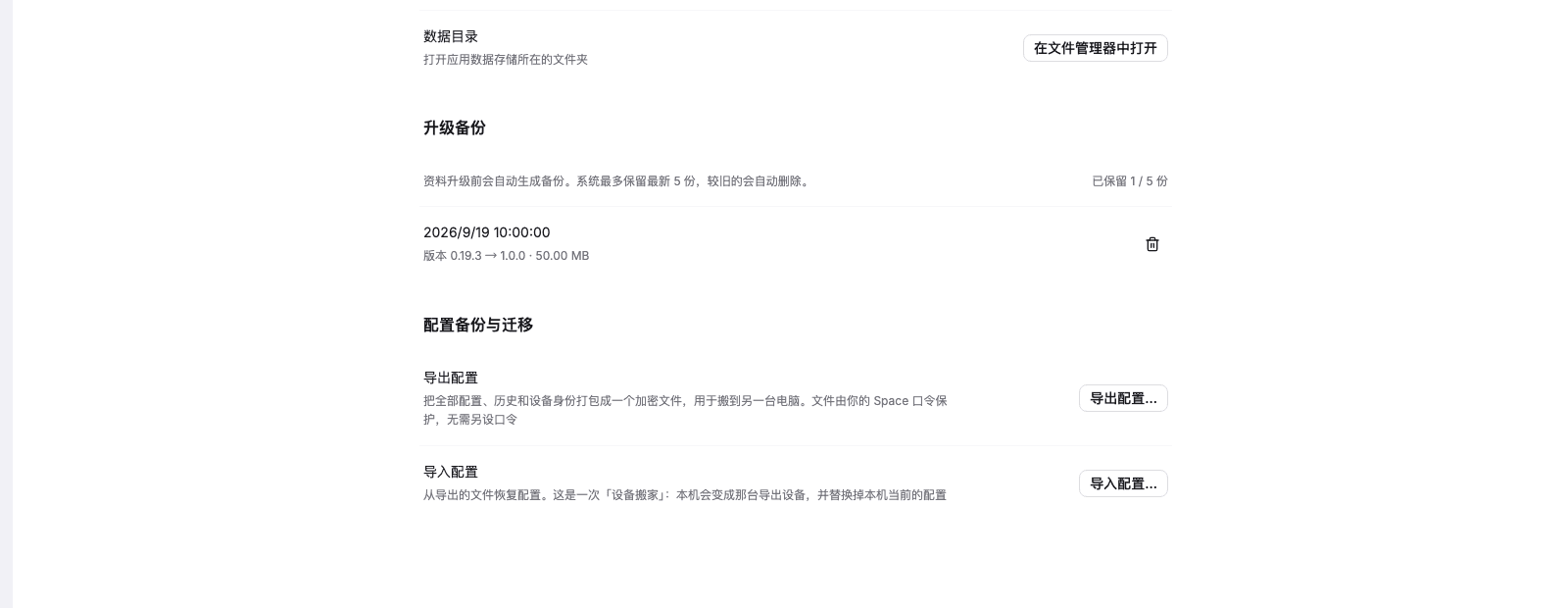
Do not delete upgrade backups immediately after upgrading. They protect the data upgrade, but they are not a complete app rollback by themselves.
2. Rebuild the search index
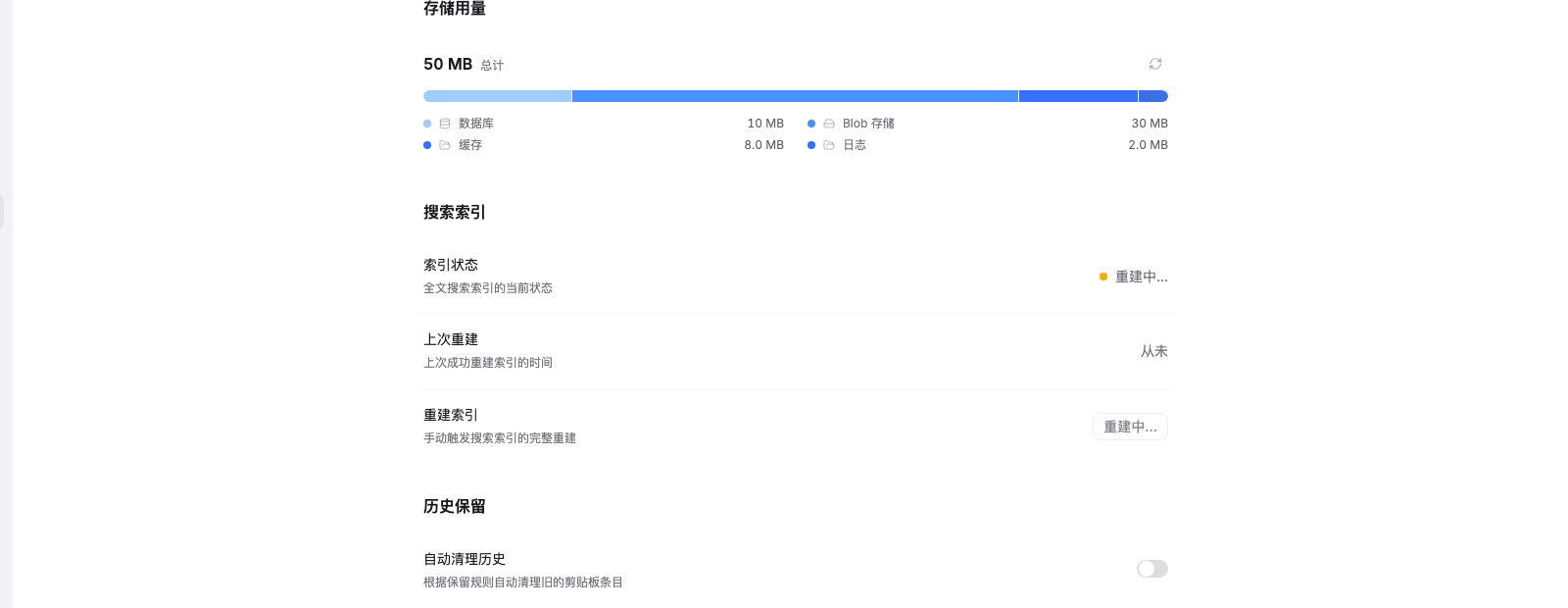
Local history is usable when the main window opens, but search is not ready immediately. The app rebuilds the search index from existing history, which normally takes about 10 seconds.
During that time:
- history still exists and can be browsed or copied;
- search may say it is rebuilding or temporarily return no results;
- you do not need to start another rebuild or clear any data.
Check Settings → Storage → Search index. Test search after the status changes to Ready.
3. Clear old paired devices
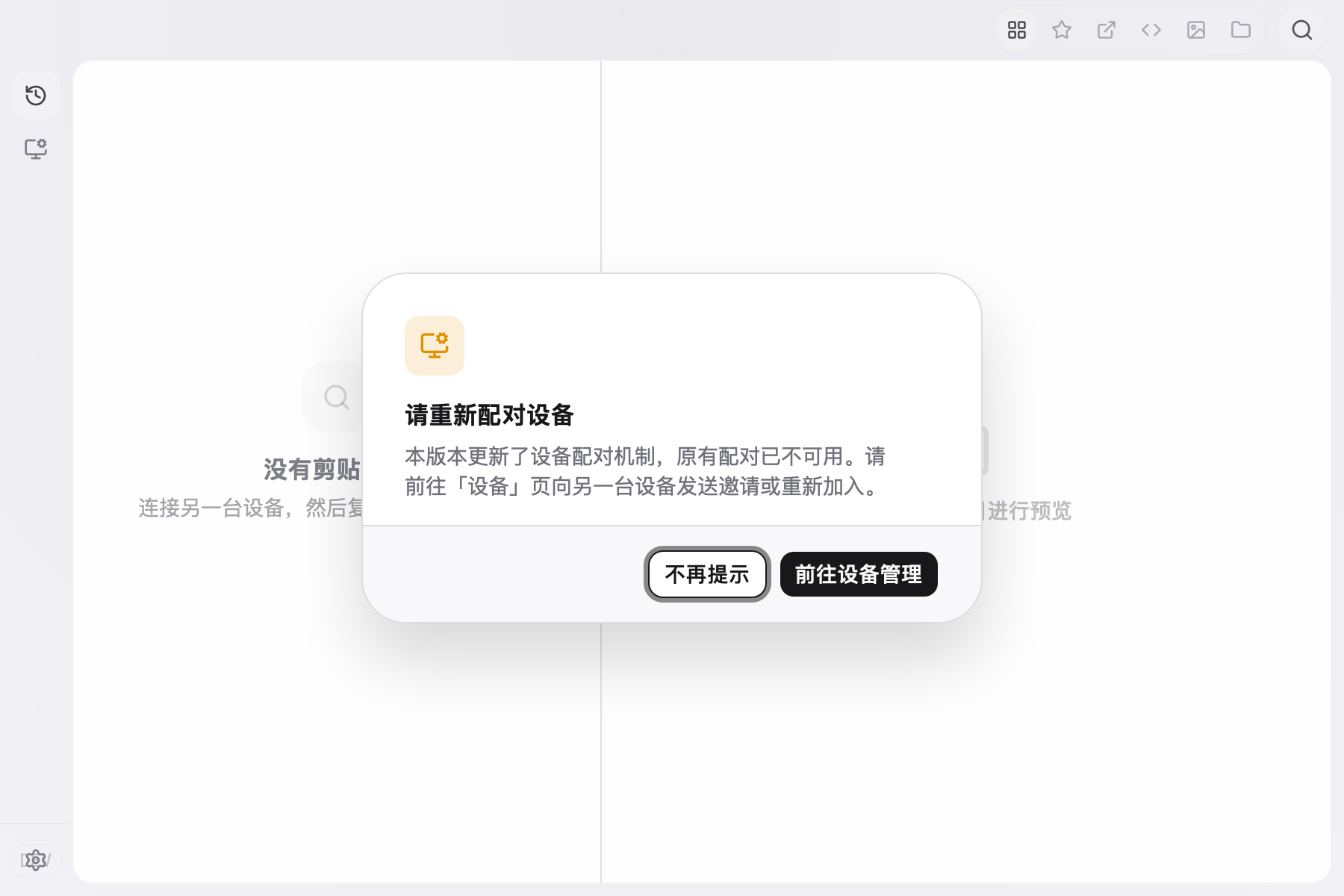
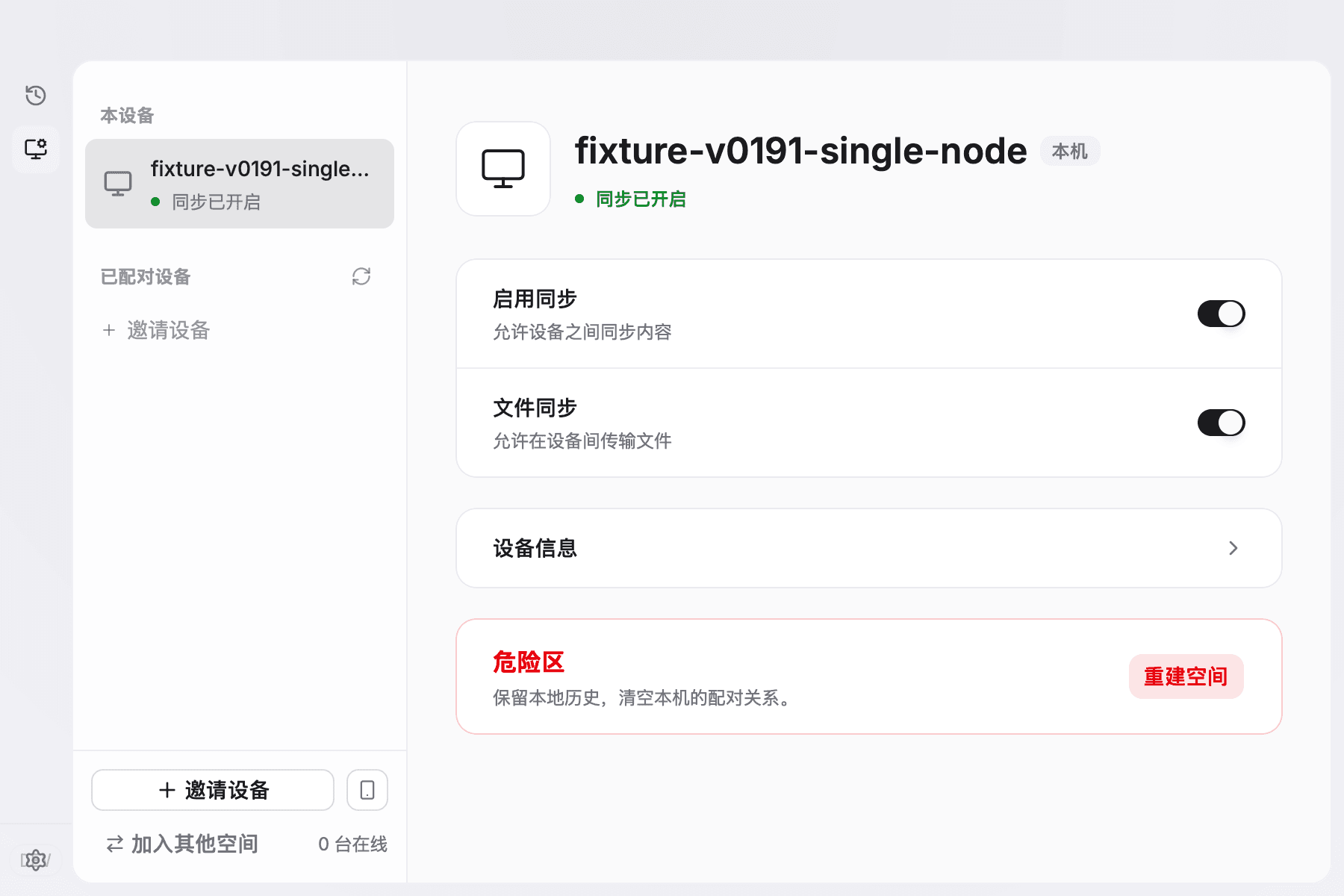
Pairing relationships created by 0.19 are not retained after the upgrade. An empty device list is expected and does not mean local history was deleted.
Upgrade the other devices to 1.0, then pair them again. Old devices will not reappear automatically.
Pair every device again
Check the About page on both devices and confirm both run 1.0, then choose which device will issue the invitation.
Issue an invitation on the first device
- Open Devices.
- Click Invite device at the bottom left.
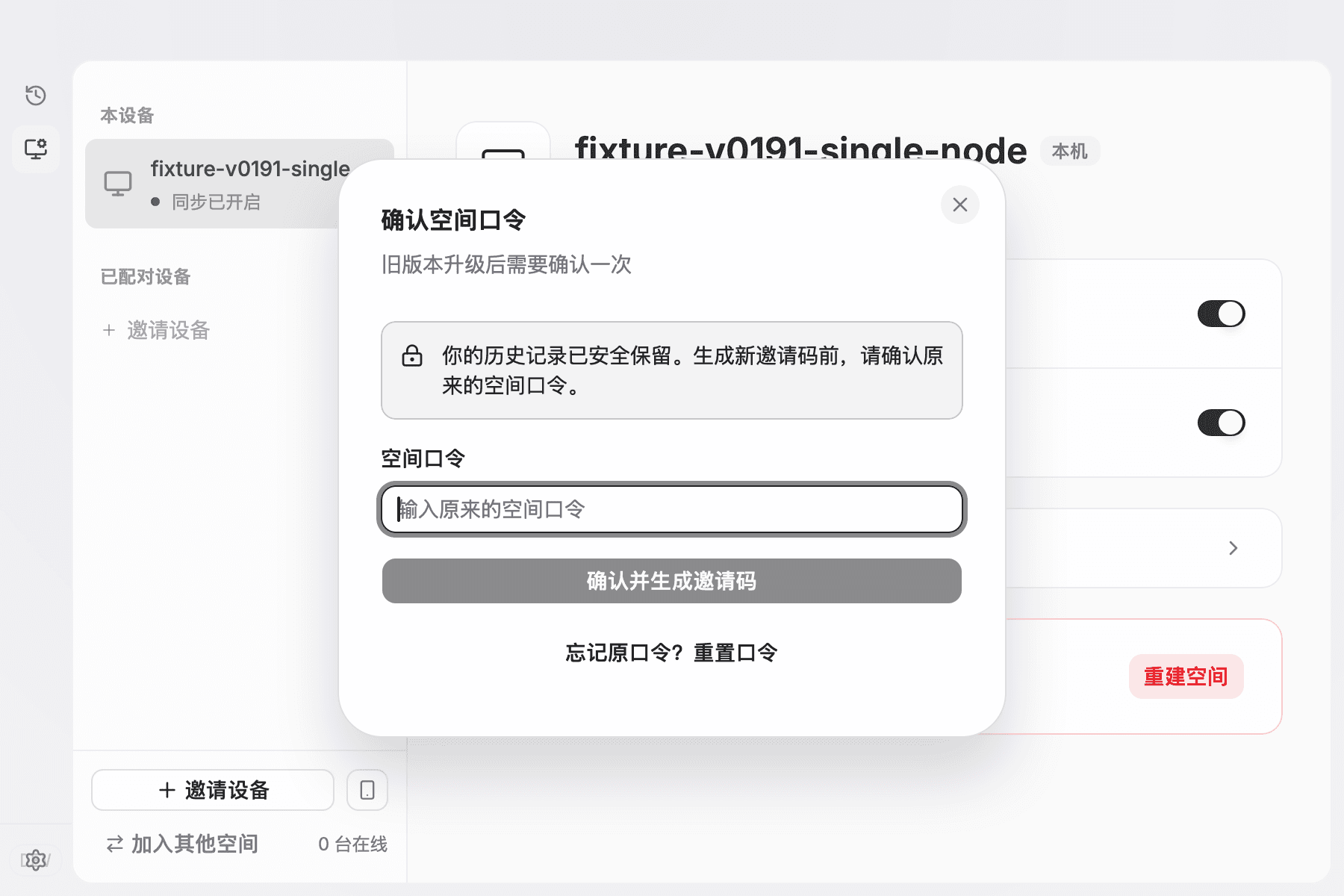
- The dialog asks for the original space passphrase used before upgrading. Enter it and click Confirm and generate code.
- Give the new one-time invitation code to the device that will join.
If you have forgotten the old passphrase, click Forgot the old passphrase? Reset it in the dialog:
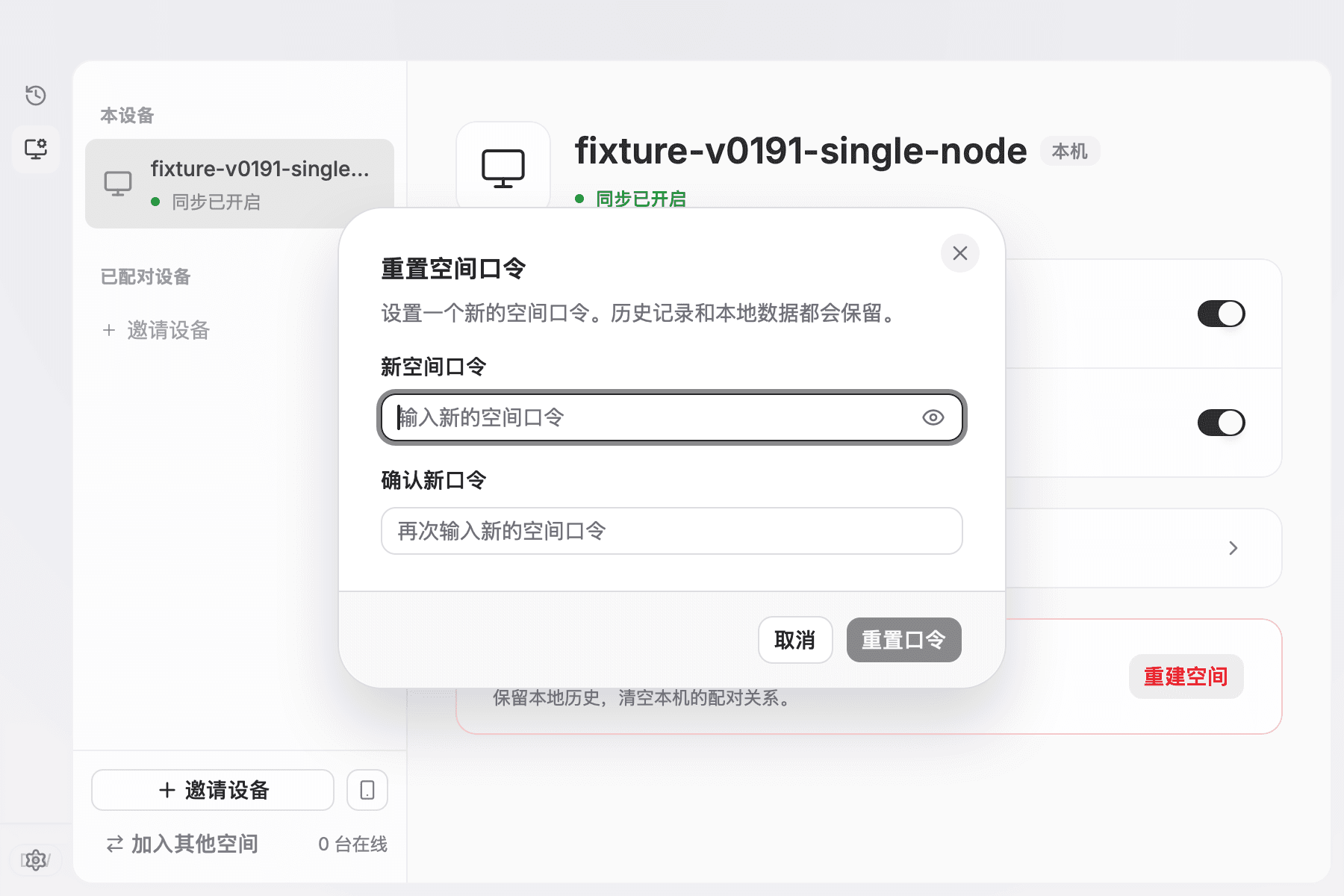
- Enter and confirm a new space passphrase.
- Click Reset passphrase. Local history and local data are preserved.
- Save the new passphrase. Every device that joins next must enter this same new passphrase.
- After the reset, the app continues by generating an invitation code. Any code created before the reset can no longer be used.
Join from every other device
- On another device already upgraded to 1.0, open Devices.
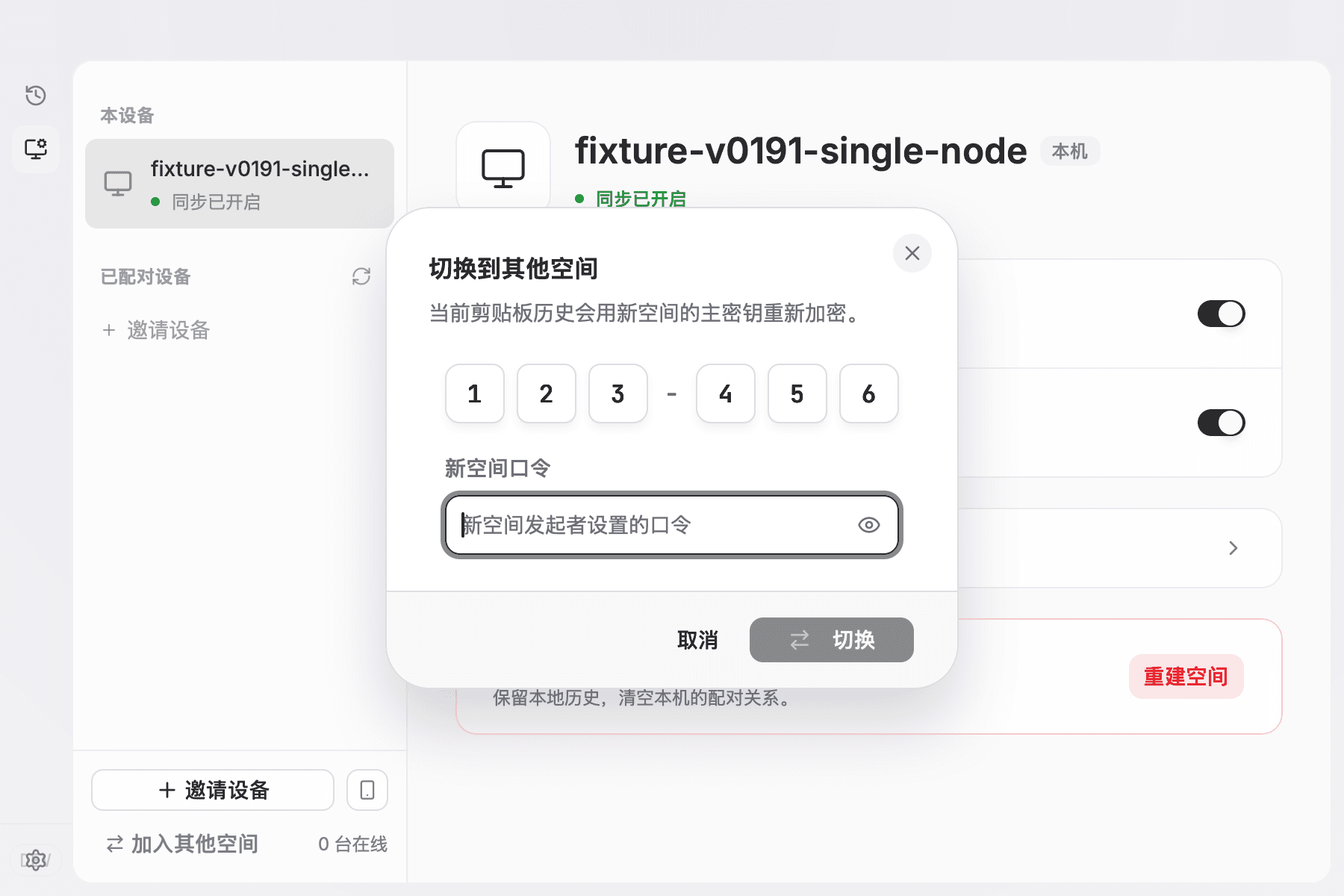
- Click Join another space at the bottom left.
- Enter the invitation code just created on the first device.
- Enter the same space passphrase as the first device. If it was just reset, use the new passphrase.
- Click Switch and wait for the join to finish. Do not quit while it is switching.
- After pairing succeeds, send a short new text in both directions.
- Repeat for the next device only after this test passes. Every joining device needs a new invitation code.
See Pairing & sync for the full pairing flow.
If either device still runs 0.19, stop pairing and upgrade it first. New invite codes, network restarts, or data deletion cannot make 0.19 pair with 1.0.
Confirm the upgrade
- About shows 1.0;
- old history, favorites, tags, images, and files open;
- Settings → Storage → Search index changes to Ready after about 10 seconds;
- the old device list is empty, and another 1.0 device can be paired again;
- two 1.0 devices sync new text in both directions;
- everything still works after quitting and reopening the app.
If something looks stuck
First launch does not finish
A large data set can make the backup noticeably slower than a normal launch. Keep the device powered and wait. Do not restart repeatedly or open a second instance.
If the app reports an error or repeatedly exits, stop retrying, preserve the upgrade backup and logs, and export diagnostics.
“Recover local data” appears
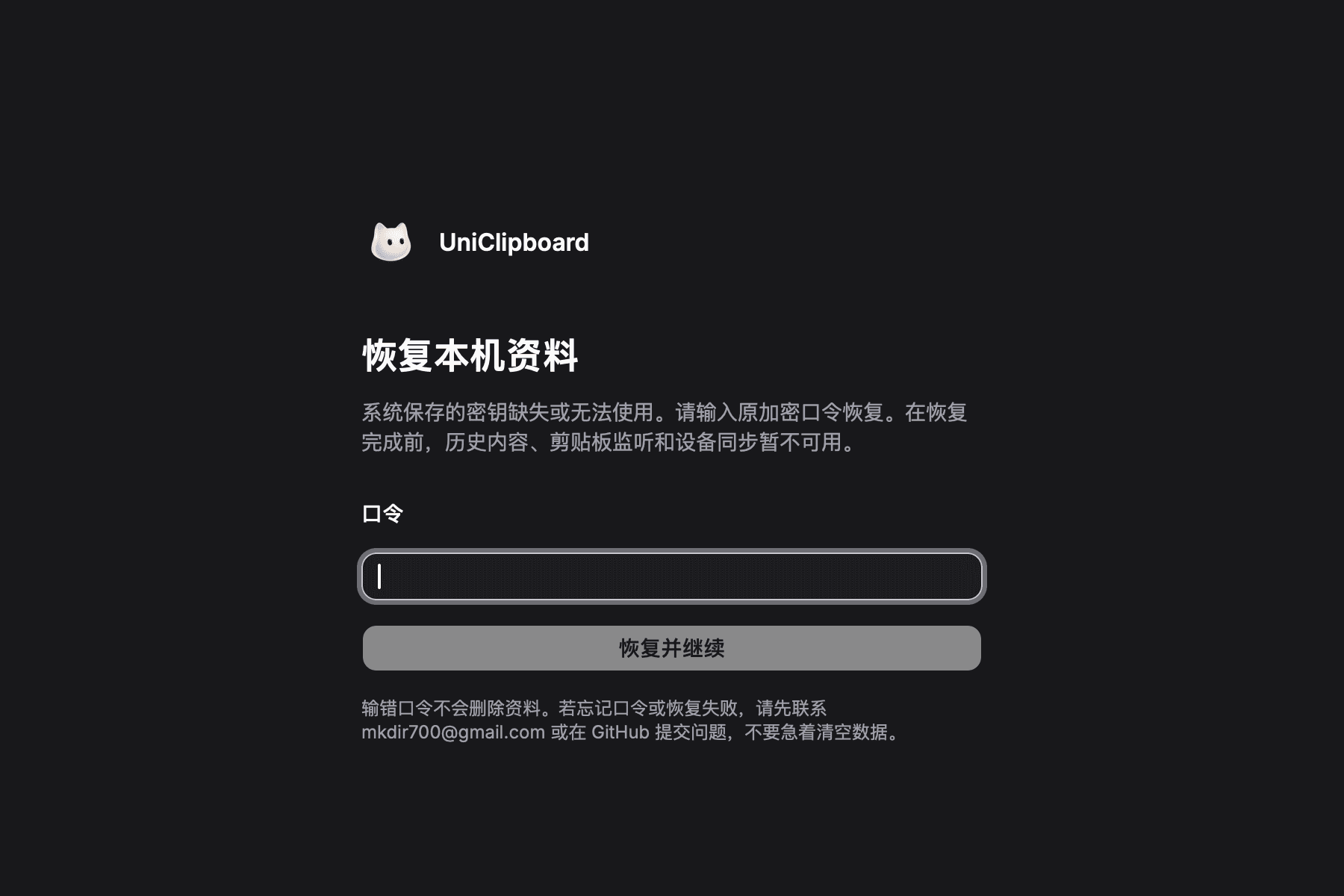
The saved system key is missing or unusable; this does not mean your history was deleted. In newer builds that support passphrase recovery:
- Enter your original space encryption passphrase, not your computer login password.
- An incorrect passphrase does not delete data. Retry it. History, clipboard monitoring and device sync remain unavailable until recovery completes.
- After recovery, open old history, copy a new item to check it is saved, then quit and reopen the app.
- If original keys are missing, recovery data cannot be read, or recovered keys cannot be saved, stop clearing or resetting anything. Preserve your data and upgrade backups and contact the author.
If background services cannot start and a restart is required, choose Restart background services instead of repeatedly entering the passphrase. Your data is preserved. If restarting does not help or recovery does not finish, keep your data and contact the author.
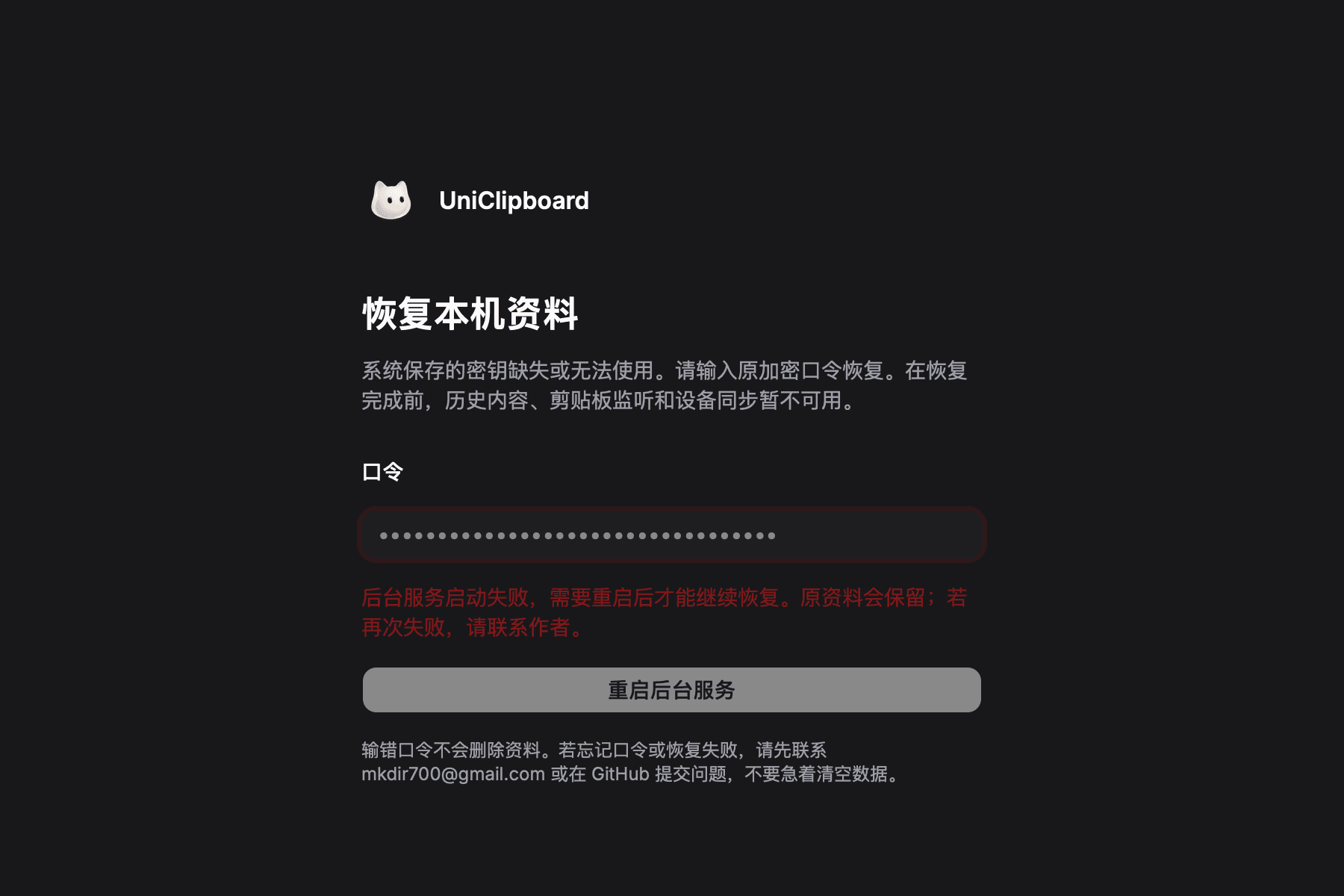
Recovery requires the complete encrypted recovery files to remain on this device. If older keys were lost before the upgrade created those files, the passphrase alone may not restore old history. Do not delete system keychain entries as a troubleshooting step.
The ordinary unlock screen only hides content and settings; background services can keep running. The recovery screen requires restoring keys before background services can resume. If an older build has no recovery screen, preserve your data and contact the author instead of resetting.
Search is unavailable for more than a minute
First confirm that history can be browsed, then check Settings → Storage → Search index. If history is normal but the index is still not ready, restart the app once. Export diagnostics if it still does not improve.
Do not delete history or the data directory to repair search.
The device list is empty
This is expected after moving from 0.19 to 1.0. Confirm the other device also runs 1.0, then pair again.
Two devices cannot pair
Check both versions first. If either device still runs 0.19, stop investigating the network and upgrade it to 1.0. If both run 1.0 and pairing still fails, keep both online and export diagnostics from each one.
History looks missing
- Stop copying new items. Do not clear history, reset the space, or delete data.
- Confirm the original user account and installation style. Windows portable must keep using its original
datafolder. - Fully quit and reopen once, then let the first upgrade finish.
- Check Settings → Storage → Upgrade backups, but do not delete or manually alter a backup.
- If data is still missing, preserve the current state and get help. Do not point 0.19 at a directory already upgraded by 1.0.
Roll back to 0.19
Do not point 0.19 at a data directory already upgraded to 1.0. New-format data may not be safe for the old app to read.
A safe rollback needs complete pre-upgrade data, its matching system secure storage, and the original 0.19 installer. The automatic upgrade backup primarily protects the upgrade itself and does not guarantee a complete rollback on its own.
Without a verified full-system backup, stop self-service rollback, preserve a successfully upgraded device and the upgrade backups, and get help. Clearing data, resetting the space, and deleting backups are last-resort actions only.
Export diagnostics and get help
For any upgrade problem, email mkdir700@gmail.com or open a GitHub Issue. The author can help investigate and recover the installation. Ask for help before deleting old data.
If the app opens, choose Settings → General → Export logs. If the command line works, run:
uniclip debug export-logsWhen reporting a problem, include the operating system and device type, Desktop versions before and after upgrading, whether it is stuck on backup/search rebuild/re-pairing, the approximate time, and the version on every device involved in pairing.
Attach the description and diagnostic ZIP to GitHub Issues. Never publish the space passphrase, invite code, or personal clipboard content.
Last resort: delete old data and install fresh
This is the final fallback for the worst case. Deleting old data permanently removes this device's history, favorites, tags, device identity, and pairing relationships. Contact the author first, and confirm that anything important still exists on another device or in a separate backup.
If you have decided not to preserve this device's old data:
- Fully quit UniClipboard, then preserve the existing upgrade backups and diagnostic logs.
- Uninstall the current version.
- Follow Emergency reset (last resort) to remove the app data and saved UniClipboard credentials from the system.
- Install 1.0 again, then create a new space or join an existing one with a new invitation from another 1.0 device.
- Send a short new text in both directions before resetting any other device.
If you are unsure what to remove, stop after step 1 and ask for help at mkdir700@gmail.com or GitHub Issues.
Final checklist
- Every device finished one last sync before upgrading.
- The first device finished its data backup and old history opens.
- Search changed to Ready after about 10 seconds.
- You understand that clearing the old paired-device list is expected.
- Every device being paired now runs 1.0.
- Devices were paired again one by one and passed a two-way sync test.
- Upgrade backups and the 0.19 installer are still being kept.